Technology is the ultimate luxury in large flagship sedans such as Audi’s A8 (starting at $72,200). On-board Wi-Fi is the latest in car tech, so it’s part of the Audi Connect system in Audi’s biggest car. Up to eight devices can hook up to the A8’s password-protected Wi-Fi network, which connects to the Internet over a high-speed LTE connection.
That means you can hand each of your kids an iPad and cruise along serenely while they occupy themselves with YouTube videos. The media interface is also impressive, and the system includes Google Earth real-world navigation graphics and Google Voice Local Search to help you hunt down travel resources.
Audi’s flagship luxury sedan, the A8, is a good-looking and surprisingly high-tech car. I say “surprisingly” because initially it doesn’t look that way—in fact, the car-tech system’s main screen doesn’t even emerge from the dashboard until you start the vehicle.
The A8 features Audi’s MMI infotainment system, which has intuitive controls and runs on an Nvidia chip. It also offers a 3G data connection, hotspot functionality, and Audi’s specialized Internet-connected Audi Connect news-delivery platform. The model we reviewed, the $78,500 A8 L 3.0T, has a few more techie features than other models do, including adaptive air suspension, which lets you customize the drive feel and vehicle suspension even while the car is in motion.
The main screen
The main event inside the Audi A8 L 3.0T is the 8-inch matte-finish screen that appears when you turn on the ignition. What I like about this “not always there” screen is that you can stow it away (a button on the dash lets you put it back in its compartment). This feature is convenient if you find the screen too distracting, or if you share the car with someone who isn’t quite so inclined to use in-vehicle technology.
This LCD screen is where you’ll find all of Audi’s infotainment options, including built-in navigation, vehicle controls, audio/media, phone-integration settings and information, and Audi Connect. Below the screen, you’ll find an analog clock, buttons for turning various safety features on and off, and a multimedia compartment that houses a single slot-loading DVD player, two SD Card slots, and a SIM card slot. A six-disc CD/DVD changer is mounted in the glove box.
The A8's infotainment features display on the main head-end screen.
The display is not a touchscreen. Instead, you control it primarily by using Audi’s MMI system, which is located at the bottom of the head unit, near the gearshift.
These controls look a little confusing at first, but they’re intuitive and easy to use. I especially like the placement: Because the MMI controls are right next to the gearshift, you can rest your arm along the console and reach all the necessary buttons and dials—no need to constantly lift your hand and reach across the head unit to tap a screen or surrounding buttons. The system does have a number of buttons (I count 15, not including the selection dial or the touchpad), but because everything is grouped together, you can learn your way around them quickly.
The MMI controls are mounted at the base of the head-end screen, just in front of the gearshift.
Not enough buttons?
The main issue I have with the MMI controls is that navigating to the screen you’re looking for can sometimes take a while. The MMI controls consist of a selection dial surrounded by four soft-function buttons (these buttons change, depending on the text in the four corners of the screen), six shortcut buttons (Nav, Menu, Tel, Info, Back, and Car), radio/media controls (including a volume dial), and a touchpad. To make selections on the screen, typically you turn the selection dial and then press it to indicate a selection. You may have to go through several menus before you find what you need, each time dialing through the selections and pressing to make your choice.
The touchpad is interesting. Most of the time it acts as a touch-sensitive radio-preset screen, with six numbers that you can tap to go to your preset stations. However, when there’s an opportunity to enter text (for example, if you’re entering an address), it becomes a handwriting-recognition touchpad. It’s very good at recognizing letters, and it presents a convenient way to enter an address, provided you have all the time in the world (you have to pause between each letter to ensure that the system has recognized it). If you need to enter an address quickly, you should use the car’s voice-recognition system instead.
Speaking of which, Audi’s voice-recognition system is very good. It isn’t quite up to Siri-level, and it can’t recognize most natural-language commands, but it is fast. Unlike other systems, which require that you pause a second before you say a command (and then require that you pause again while the system processes that command), Audi’s system is almost immediate. It’s also programmed to recognize some natural-language speech, such as “oh” for “zero.”
The A8 comes with Audi Connect, which pulls certain types of content from the Web.
Infotainment and navigation
The A8 has its own 3G data connection, which you can turn into a Wi-Fi hotspot for connecting Wi-Fi enabled devices inside the car. The screen allows for streaming-video and DVD playback, though not while the vehicle is in motion. The car doesn’t have to be in park, though—if you’re sitting in traffic, you can watch a DVD, but the screen will go blank every time you start moving.
The A8 has built-in navigation, featuring 3D maps and a four-year subscription to SiriusXM traffic reports. You can enter addresses, go by points of interest, or find online destinations using Google search for route guidance. I especially like how easy it is to enter destinations using either the selection dial to choose letters, the touchpad to write letters, or Audi’s voice-recognition system to say the full address.
The A8 also comes with Audi Connect, which is Audi’s connected information platform. Audi Connect is like an especially watered-down version of the Internet—think mobile phone browsers circa 1991. With Audi Connect, you can get traffic reports, news, and weather information, though everything is in headline/snippet format. Audi Connect doesn’t strike me as something most people will use, though it might be useful or interesting if you happen to be bored and stuck in traffic.
The only real issue I had with the car was its phone connection. You’re supposed to be able to connect your phone via Bluetooth to the A8, so that you can make calls through the car’s speaker system, but I couldn’t get the car to recognize any of my phones—and I tried three models (a Samsung Galaxy Note 2, a Samsung Gusto 2 feature phone, and an iPhone 4). The good news is that the process of connecting your phone to the car seems pretty straightforward, and you can do it even while the car is in motion. I just wish I could have gotten it to work.
Other screens and features
The A8’s other screen is an impressively large instrument-cluster display. Nestled between the tachometer and the speedometer, the A8’s Nvidia-powered instrument display looks more like the Tesla Model S’s all-digital instrument cluster, rather than the small, 2- or 3-inch rectangular displays we’ve gotten used to in cars.
You control the A8’s instrument display with buttons and a dial on the left side of the steering wheel.
The instrument display is customizable (you can also dim it completely, if you find it too distracting), and it can show lots of different information. For example, it can show “onboard computer” statistics, such as fuel economy and average speed, as well as a digital speedometer, lane assistance, radio/media settings, and phone settings. If you’re using the A8’s navigation system, the instrument display also shows turn-by-turn directions. The bottom of the screen shows the temperature, time, odometer trip meter, and current-gear stats constantly.
The A8 comes packed with safety features, including lane assistance (which issues an alert if you drift outside your lane), rain-detecting windshield wipers, and a fairly advanced parking aid system. The parking aid system uses a backup camera to show you what’s behind you, and sensors around the front and back of the car beep increasingly faster as you approach something you don’t want to hit. In my tests, the parking sensors seemed a little too cautious: Even when the sensors were beeping so quickly that it basically sounded like one long beep, I was still more than 6 inches away from the wall.
You can turn off any of these safety features, including the lane assist, parking aid, and blind-spot monitoring. You can also stow the screen, put up the rear window blind, and turn on the hazard lights.
Bottom line
With the A8, Audi has done an admirable job of designing high-tech features into a plush interior. Before you turn the car on, the interior looks like something that might appeal to an older demographic, complete with wooden paneling, leather touches, minimal dashboard buttons, and an analog clock. But when you start the engine, it’s an entirely different story. The screen emerges from the dashboard and the instrument cluster lights up, and the A8 looks as high-tech as any of the other cars we’ve reviewed.
The A8‘s in-vehicle tech is surprisingly intuitive and easy to use, even if you’ve never played with a connected vehicle before. Despite the fact that many of the menus are pretty deep, you need go only to the first or second level to reach the main parts of the car’s infotainment offerings. And Audi’s voice-recognition technology works well enough to allow you to circumvent using the on-screen menus altogether by speaking your commands.
DETROIT— "Seeing and being seen" took on a whole new meaning at the 2013 North American International Auto Show (NAIAS). I spied production and concept cars with serious imaging technology, and they spied me right back.
Cars with embedded cameras and displays are nothing new. Rear-view backup cameras have been around for a while, and several cars have some sort of display nestled into the dash. However, the next generation of imaging devices in cars will take on far more complex and active roles in the driving experience.
The car is the image
Let’s start with the craziest one, Toyota’s Fun-Vii. Unveiled a little over a year ago, this car is an inside-and-out moving display. A smartphone app lets you alter its exterior and interior looks at will.
MELISSA RIOFRIOThe Fun-Vii is a rolling display, inside and out. You can change the surface image or even ‘write’on the display using a smartphone app.
At NAIAS, Toyota displayed a huge touchscreen running an app for applying different images to the skin. You could “write” on the car by tracing on the touchscreen. While highly unlikely ever to come to market, it’s a great excuse for Toyota to mess around with imaging technologies and see what might actually work in a real car.
Smart Forstars has built-in projector
More feasible, if only slightly less crazy, is the projector built into the hood of the Smart Forstars concept car.
SMARTThe Smart Forstars concept has a projector built into its hood.
Part of the concept is that the car will be able to stream video from your smartphone to the forward-facing projector, which displays images on any vertical, flat surface in front of the car. A promotional video shows the car wheeling into an supermodern loft to entertain a group of urban hipsters. If this car ever does come to market, it will give the 20th-century phenomenon of drive-in movies a new-generation lease on life.
SMARTThe Smart Forstars concept car can stream videos from a smartphone and project it onto walls and other vertical, flat surfaces.
The Smart Forstars also offers a surprising—and somewhat gratuitous—twist on the traditional rearview mirror. Instead of a trusty hanging piece of glass, the Forstars has a smartphone dock in the upper part of the windshield. You put your smartphone in the dock, and it streams video from a built-in rear camera. A Smart spokesperson at the booth said you didn’t have to keep the phone in the dock all the time for it to work. My question is: how would constant streaming during driving affect battery life, and would I really want a power cord dangling from the docked phone to some connector on the dashboard? But this is a concept car, so there isn’t necessarily an answer.
The camera as backseat driver (in front)
VOLVOThe Volvo City Safety system uses a windshield camera and laser to detect what’s around you while you drive.
While projector-equipped cars and rolling digital billboards are fun to look at, there are also more-practical uses for in-car imaging devices that are bound to end up in many more cars soon. There’s no smartphone rearview device in new Mercedes E-Classand Volvo cars, but built into the windshield above their traditional mirrors is a cluster of detection devices. This cluster is the backseat driver moved to the front, watching out for hazards and things that sneak up on you as you drive.
VOLVOThe Volvo V40 (available in Europe) tracks and alerts you to nearby pedestrians.
A camera teamed with a laser form the basis for Volvo’s City Safety system, designed to avoid auto accidents in low-speed urban environments. In Volvo cars equipped with the company's Technology Package, a front-grille radar is added to the team to detect pedestrians, look ahead for road signs, and keep you from straying from your lane.
One camera isn’t enough for Mercedes-Benz’s Intelligent Drive system. Its two front cameras, angled at 45 degrees, can see in three dimensions at a distance of up to 55 yards in front of the vehicle. The cameras feed what they see into the Intelligent Drive system, sorting out what looks like a pedestrian or a vehicle, for example.
MELISSA RIOFRIOThe new Mercedes-Benz E-Class cars have two front cameras angled at 45 degrees for a 3D view of up to 55 yards ahead.
Next-gen distractions?
These next-generation imaging technologies are an intriguing part of new advances in car technology, and the practical, safety-minded systems that help you see what’s going on around your car are far more likely to see mainstream adoption. While an inside-out display or a streaming smartphone rear-view mirror is a cool showpiece to see at a car show, drivers will still need to keep their eyes on the road—well, until self-driving cars become commonplace, that is.
There’s a ton of streaming video content on the Web, but I think most of us would agree that it’s a more enjoyable experience to watch that content on a TV rather than a computer display. At least that’s what Plair Media is hoping with the release of its $99 eponymous video streaming stick.
Set-top boxes like the Roku 3 give you access to hundreds of channels of content, but the Plair is going after a different type of user—the kind who runs a 20-foot HDMI cable from their laptop on the couch to the back of their HDTV.
JASON CROSS
Using a Chrome plug-in, you can choose video content from the browser on a Mac running OS X 10.6 or later or a Windows PC running XP or later to “send” to your TV. The reason behind the quotation marks is that you’re not streaming the content from your computer to the Plair—the way you would with AirPlay and an Apple TV, say—but rather telling a particular website to send the content directly to the Plair. (The company actually uses the word beam, but that’s not really right either.) There’s also more limited functionality from iOS 4.2 or later- and Android 2.3 or later-running mobile devices, and support for streaming videos and photos directly from your computer or mobile device.
JASON CROSSThe Plair atop an Apple TV for comparison.
The setup
To get started, you plug the Plair (available in red, black, or blue) into an HDMI port and connect the power plug to an outlet. The odd shape of the device made it hard to plug into one of the side-positioned HDMI ports on my HDTV while another cable was plugged into the other, and I was forced to plug it into in the bottom port. I could see the shape being a problem on other TVs as well.
Setting up the Plair in Chrome.
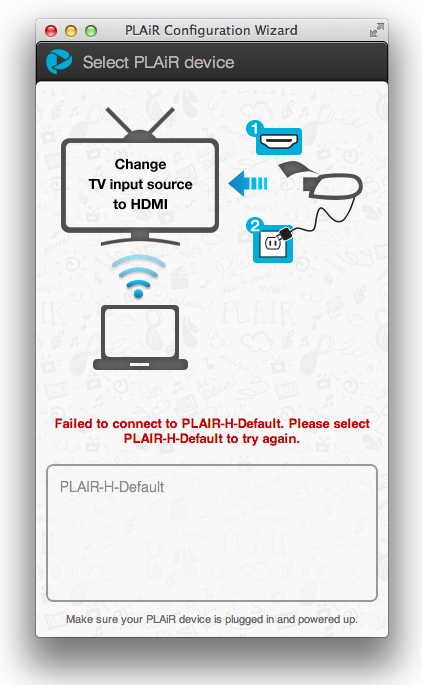
Once powered up, the Plair activates a built-in Wi-Fi hotspot that you use to configure it. Then you’re prompted to choose the PLAIR-H-Default network on your computer or mobile device, and launch either Chrome with the plug-in installed or the iOS or Android app. (Of course, if you haven’t already downloaded them, you can’t because you’re no longer connected to the Internet.)
I tried repeatedly to set up the Plair in the TechHive offices using the Chrome plug-in on my Core i7 MacBook Air and the latest stable version of the browser, but even though the configuration wizard saw the device, it failed to connect to it on every try. Eventually I switched to the iOS app and had better luck. Testing again at home, I was able to finally use the browser for setup after a few tries. The company says mobile devices are more reliable because of how they’re designed to look for wireless networks on a constant basis.
Once everything was set up, The Plair auto-played a GoPro demo reel of HD adventure footage, which looked great on two different TVs. For those interested in the specs, the Plair has a 1GHz ARM processor, 1GB of DDR3 RAM, 802.11n Wi-Fi, and a built-in GPU to support 1080p video.
From your computer
To choose content from a computer, you just visit a website. Plair has a list of featured channels including ABC, CBS, Fox, A&E, SyFy, and USA, but if there’s supported video on a site you visit, you’ll see a blue icon (a TV with a play button on it and some lines representing a wireless signal) in the upper right corner of the video. Click it and choose to beam the video, and it will start playing on your TV. Usually.
When it played, the results were usually quite good—although I encountered some delays before the video would begin. I played video from a number of different sites, including NBC, PBS Kids, Comedy Central, and YouTube. The quality of the video depends on what’s being served as well as the robustness of your Internet connection. And because the content isn’t coming from your computer, you can do other things with it—or even shut it down—without impacting the video. You won’t be able to control playback at that point, but it’s a neat trick to try.
Selecting a program to beam to the Plair.
What’s not supported? Currently, you can’t play anything from Netflix or Hulu, and there are other sites with video players that the Plair can’t deal with. The company plans to add support for additional sites, and says it will respond to requests as well.
And then I had times where all I got was a white screen when I tried to play something. I had to unplug the Plair and then plug it back in to get everything to work. The company says the white screen is due to Flash crashing (insert your own joke here) and that restarting Chrome should reset things (it didn’t for me), but is working on a better fix.
Another time I started playing a show, then my computer could no longer find the Plair. I had to quit and relaunch Chrome, re-authorize the plug-in, and then connect again.
In addition to Web streaming, you can also send videos and photos from your computer’s hard drive to your TV via the Plair. It won’t work with any DRM-saddled content, however, such as iTunes Store videos. When you select a video, the plug-in “prepares” the video for streaming and then you can watch it. You can create playlists of content you want to stream as well. Playing a 1080p video from my laptop worked, but the playback was a bit jittery. (On its site, the company notes that, “Some phones cameras make very high bitrate videos that are not supported on WiFi networks. Most phone cameras don’t have this issue.”)
From your mobile device
Channel selection on the iPad.
On mobile devices, you have access to a more limited set of content, although the company is planning to release an API for other content providers who want to add Plair support. As a test, a few coworkers and I enjoyed “Watch Rachel Dratch Run The Julia Roberts Obstacle Course!” from the Funny or Die website, as beamed from my iPhone 5 to the HDTV in our lounge. To control playback, you pinch out on your mobile device’s screen to bring up a set of remote controls. Pinching in gets rid of the remote.
Streaming local videos to the Plair.
As with on the computer, you can send photos and video directly from your iOS or Android device to your TV. After selecting a bunch of images, I was able to watch a slideshow of pictures I took with my wife on a hike at San Francisco’s Lands End. Swiping the iPad’s screen advanced easily to the next slide (although, oddly, starting the photo playlist flipped the orientation on my iPad’s screen for no apparent reason).
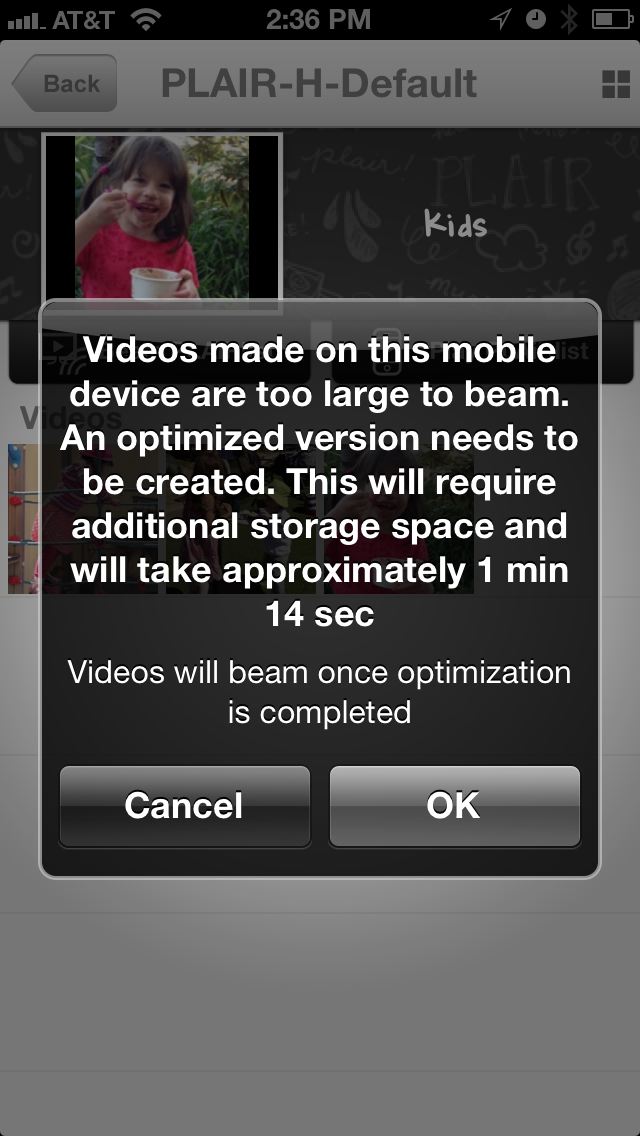
I also tried sending both iPhone 5- and third-generation iPad-shot 1080p videos from my respective devices, and was informed they were “too large to beam” and needed to be optimized first. During the process, the app crashed on both devices. After a relaunch, the videos played on from the iPhone, but the iPad app crashed repeatedly and I couldn’t get it to work. The company told me it found a bug that it plans to address in this area. (I didn’t try out the Android app for this review.)
Bottom line
The Plair is an interesting concept, but in its current form too buggy for primetime. When it worked, it was pretty cool. But unfortunately it was pretty much hit or miss. Although I understand the company is going after a less tech-savvy person than your typical set-top box user, for most people the same money would be better spent on an Apple TV or Roku 3.
This is the burning question of the moment: Should you buy the Samsung Galaxy S4? After spending a few days with the phone and running it through TechHive's suite of tests, I can confirm that the Galaxy S4 is an impressive Android phone. Samsung's latest offering tops its previous efforts in many respects, and Android fans are rightly excited by the Galaxy S4's imminent release (slated for the end of the month). That's not to say that the phone is perfect: For all of its innovations and cutting-edge specs, the Galaxy S4 has shortcomings that prevent it from being the ideal smartphone.
Familiar face
At first glance, the Galaxy S4 looks similar to its predecessors, theGalaxy S3andGalaxy Note 2. The phone shares the same rounded corners, Home button, and primarily plastic design; yet the Galaxy S4 feels more polished overall. The new phone's buttons are more durable than those on the Note 2 or Galaxy S3, and its plastic components seem to be of higher quality. Measuring 5.38 by 2.75 by 0.31 inches and weighing a scant 4.64 ounces, the Galaxy S4 is slightly lighter and thinner than the Galaxy S3. However, the Galaxy S4 felt blockish next to the Galaxy S3's gentle curves and wasn't as comfortable to hold.MICHAEL HOMNICKThe Galaxy S4 achieves its slim profile at the expense of being less comfortable to hold.
The 5-inch, 1920-by-1080-pixel display on the Galaxy S4 offers an impressive 441 pixels per inch, making it one of the sharper-looking screens around, and beating the pixel density of the iPhone 5 (326 ppi) and the Galaxy S3 (306 ppi). Still, colors looked more saturated on the Galaxy S4 than on competing smartphones. The thin bezel surrounding the screen made using the phone one-handed more difficult because of the ever-present hazard of inadvertently hitting the Menu button or the Back button—a mistake that tended to happen as I was trying to type an email or text message.
MICHAEL HOMNICKLike on the Note 2 and Galaxy S3, the battery on the Galaxy S4 is removable.
The back of the phone comes off to reveal a removable 2600mAh battery, and a MicroSD card slot that can accommodate up to 64GB of additional storage. TechHive’s lab clocked the Galaxy S4's battery life at a solid 7 hours, during which it continuously played back HD video, and I managed to squeeze a full day of use out of the phone while browsing the Web, downloading apps, taking pictures, before having to recharge it.
The Galaxy S4's overall design is a a bit underwhelming. The Galaxy S4 looks chintzy next to phones like the HTC One and the Apple iPhone 5, whose aluminum bodies give them a premium look that seems absent from Samsung's new handset. The phone is by no means ugly; I just wish Samsung had used something other than plastic for the chassis.
Everything but the kitchen sink
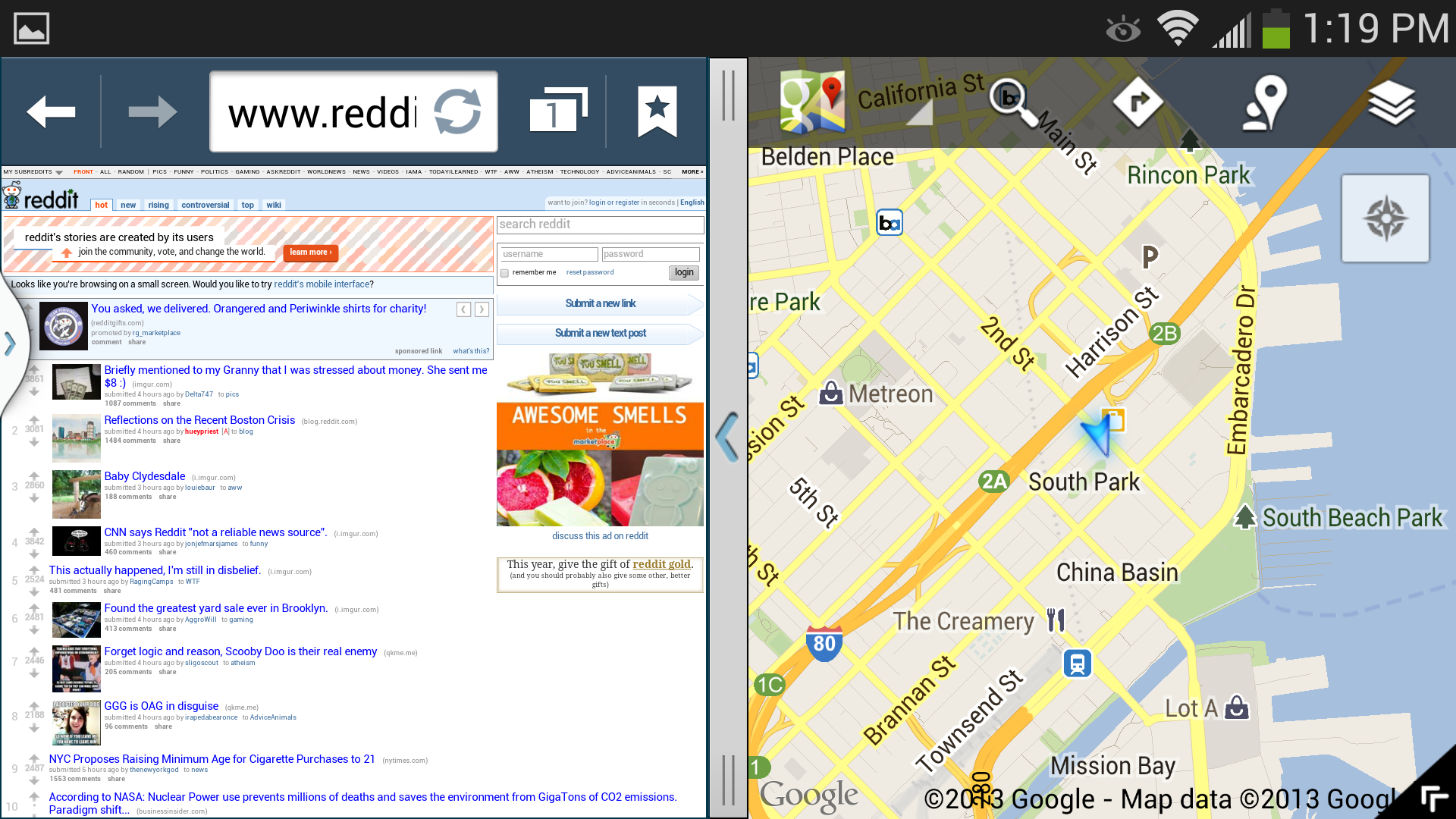
The Galaxy S4 can run two apps side-by-side.
What Samsung's phone lacks in design, though, it makes up for in features and specs. The U.S. version of the Galaxy S4 ships with a 1.9GHz quad-core Snapdragon 600 processor and 2GB of RAM, making the phone a powerhouse at running 3D games and other resource-heavy applications. All of that processing power comes in handy when running two apps simultaneously, a feature we most recently saw on Samsung's 8-inch Note tablet.
Another feature borrowed from the Note line is Air Preview: By hovering your finger a few centimeters off the screen, you can view the contents of folders, email, and messages without having to open them. It's pretty neat, but I didn't find myself using Air Preview all that much, as simply opening and closing content was often faster than waiting for the preview to show up.
The Galaxy S4 also supports the hands-free Air Gestures control, which lets you scroll through webpages, flip through photos in the Gallery app, and answer the phone by swiping your hand over the Samsung logo above the screen. I ended up using Air Gestures more than I thought I would, because it gave me some control over the phone without having to touch it—useful for when my hands were wet or dirty.
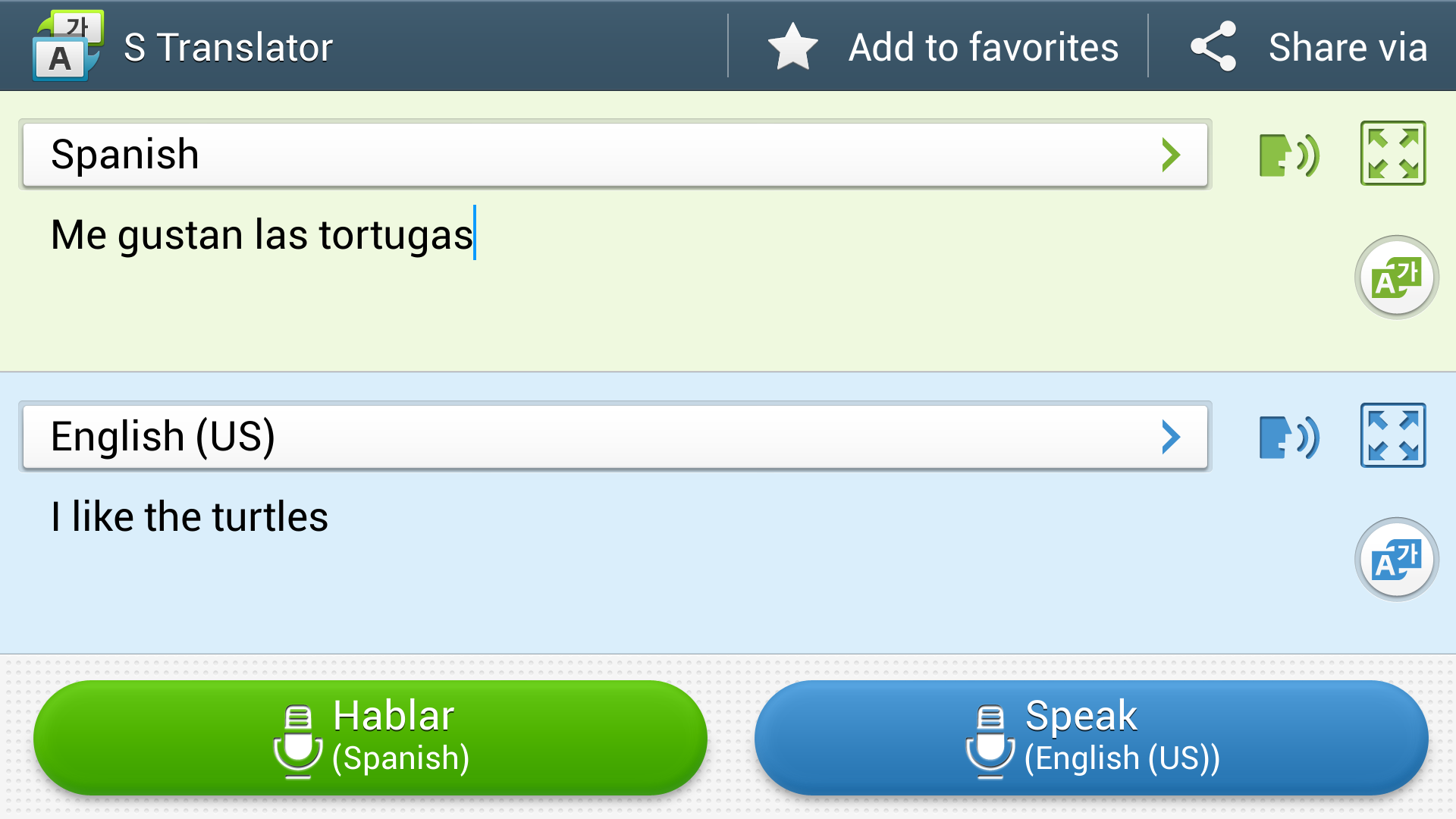
S Translator in action.
Other highlights of the Galaxy S4 include the exclusive Optical Reader, S Translator, and S Health apps. Optical Reader lets you scan text or QR codes, and you can use it to enter information from business cards into your contacts quickly. The app worked well for scanning QR codes, but it stumbled a bit when I tried to scan several business cards that I had lying around.
S Translator is basically Samsung's attempt to copy the functionality of Google Translate: You enter or speak your queries, and S Translator spits out a translation in one of 12 languages. Though the app managed to translate my Spanish phrases into English somewhat successfully, it seemed uninspired next to the official Google Translate app, which can translate to more languages, and can do so more accurately.
S Health keeps track of your steps and the number of calories you've burned.
I grew to appreciate S Health, Samsung's fitness tracking app, the more I used it. I'm constantly forgetting my Fitbit at home, so having the Galaxy S4 track my steps and activities without any need for extra hardware proved extremely convenient. The app can also track your calorie intake, and it uses colorful graphs to show you how close you are to your daily step count. S Health is one of my favorite additions to the Galaxy line, and I hope Samsung keeps the service around for future Samsung phones.
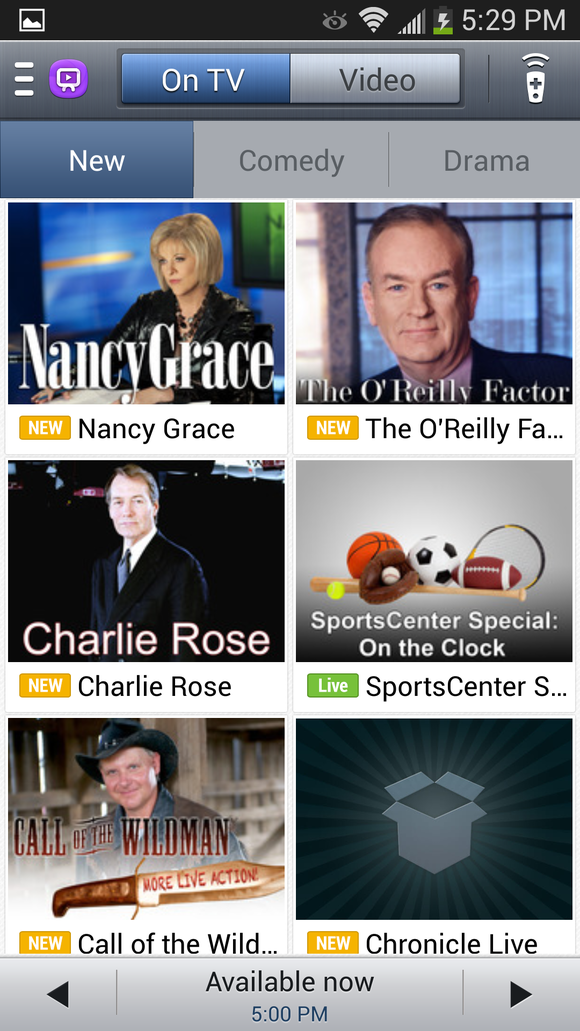
The WatchOn app on the Galaxy S4.
Another aspect of the Galaxy S4 that I thoroughly enjoyed was the phone's ability to function as a universal remote control. The phone has a built-in IR blaster, and the preloaded WatchOn app allows you to browse TV listings. The app isn't as straightforward to set up as the TV app on the HTC One, but WatchOn offers extra functionality such as the ability to pair with a Google TV.
Smart Stay, a feature available on the Galaxy S3, returns on the Galaxy S4 and is accompanied by two new head-tracking options: Smart Scroll and Smart Pause. Smart Stay is supposed to keep your screen from dimming as you look at it, but it was as buggy on the Galaxy S4 as it was on its predecessor and often failed, depending on the lighting in the room. Smart Scroll registers when you tilt your head or the phone to scroll up or down. This function worked as advertised, though moving my head felt unnatural and tilting the phone often caused me to scroll down farther than I intended.
Of the bunch, however, Smart Pause deserves some ridicule. With Smart Pause enabled, your videos will pause whenever you look away from the screen—or at least that's what it's supposed to do. In reality, tilting the phone in a certain way caused playback to stop, which made watching videos on the phone during my bumpy commute an exercise in frustration. Smart Pause is off by default, and I recommend leaving it that way.
According to Samsung, the Galaxy S4 has more than 100 new features, but that means very little when many of the phone's headlining capabilities come across as broken gimmicks. Apps like S Health show that Samsung can make great software when it tries; I'd love to see the company put more effort into practical endeavors rather than wasting time and resources on half-baked novelties like head-tracking.
Dual cameras, drama shots, and more
A photo taken with the Galaxy S4.
The main shooter on the Galaxy S4 is a 13-megapixel camera with a single LED flash. Photos taken with the Galaxy S4 looked great, with vibrant colors and minimal digital noise. Photos taken indoors came out looking surprisingly good, though the results varied greatly from location to location. The phone has a Night mode for taking photos in dark environments, but my Night mode shots came out extremely grainy.
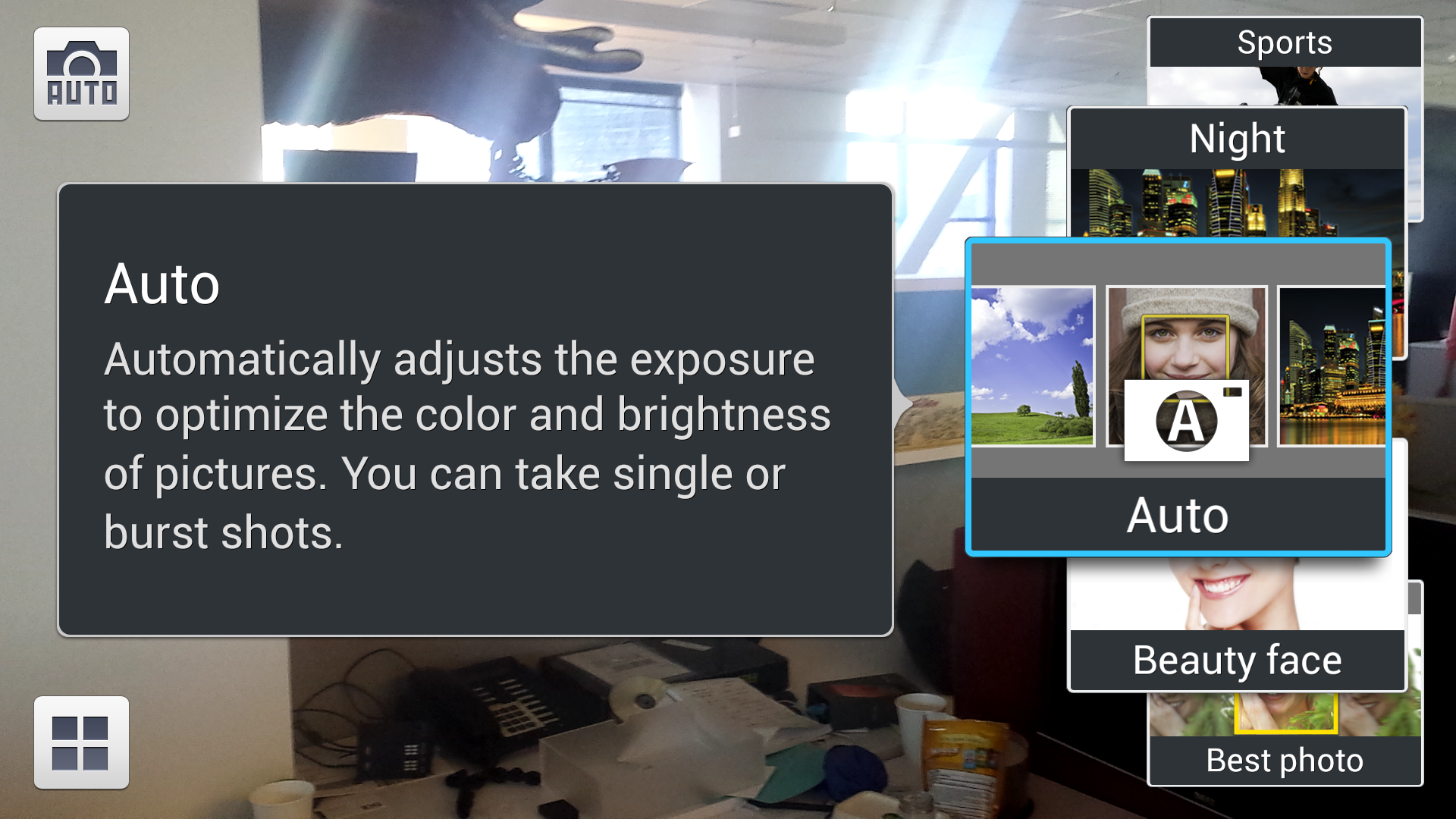
The Camera app benefits from a wide array of shooting modes, including Macro and Panorama. One mode lets you record audio while taking a photo, and another allows you to erase objects or people from your shots. I'm not sure why you'd want to record audio while taking a photo, but the ability to remove unwanted subjects from photos worked extremely well in my tests. I used it successfully to remove some bystanders from a photo of a bridge.
The Camera app on the Galaxy S4 features an impressive array of shooting modes.
Two of the Camera app's shooting modes, Dual Camera and Drama, are especially interesting. Activating Dual Camera turns on the front-facing camera while the main camera continues to run, enabling you to "insert" yourself into any photos you take. I can see the feature appealing to families that don't want to leave anyone out of a vacation photo, but I had trouble properly framing my subjects while simultaneously making sure that my face was within the front-facing camera's rather small viewing angle. Dual Camera worked better when I held the phone in portrait mode, but who takes photos that way? (Terrible people, that's who.)
Drama mode on the Galaxy S4.
The Drama shooting mode takes multiple exposure shots and stitches them together to form a single photo. As you can see from the image above, the mode works best for capturing images involving lots of movement, or when you're trying to re-create the Abbey Road album cover. When you take a Drama shot, you can select the photos that you'd like to use in the final image by tapping on them, though the Galaxy S4 usually did a good job at picking the best images and stitching them together on its own.
The HTC One has a similar mode that uses the phone's Zoe camera. However, the feature on the Galaxy S4 required less digging through menus. In fact, though the camera apps on the HTC One and Galaxy S4 shared many similar features, they were almost universally easier to access and operate on the Galaxy S4.
Unfortunately, all of these excellent capabilities come at a price: Though the Galaxy S4 runs Android 4.2.2 Jelly Bean, it lacks the ability to take PhotoSpheres—arguably one of the coolest features of the stock Android 4.2 camera. It's possible that Samsung could restore PhotoSpheres later, but I'm disappointed that the option won't be available at the phone's release.
Bottom line
MICHAEL HOMNICK
When the Galaxy S3 launched, it was widely regarded as the best Android phone of its time: It had the best design, loads of features, and an impressive list of specs that set it head and shoulders above the competition. The same cannot be said about the Galaxy S4. Yes, the phone is loaded with extras, and its specs are nothing to scoff at; but the Galaxy S4 doesn't do much to differentiate itself from the pack. If anything, the phone is more iterative than revolutionary, and some aspects of the handset—such as Samsung's TouchWiz overlay and the phone's plastic aesthetic—make the Galaxy S4 feel like it's stuck in 2011.
Despite its flaws, the Galaxy S4 is a solid phone and a worthy successor to the Galaxy S3. The Galaxy S4's camera is exceptional and apps like S Health make this new model worth considering. Is it the best Android phone out there? No, but that shouldn't stop people from buying it if they find Samsung's additions to Android appealing.
You bite your nails. Your house is a sty. You never signal before changing lanes, and when you finally reach your destination, you're 30 minutes late.
We all have bad habits in real life. Why can't technology help cure them? While technology should help us break bad habits, all too often it makes things worse.
Are you guilty of a bad tech habit? Here are 21 of the worst technology-oriented habits, plus potential fixes for all of them. (And we have a bonus at the end, on mending bad email habits.)
1. Leaving equipment in plain sight
PHOTOGRAPH BY ROBERT CARDINSomeone can easily take your gear if you leave it sitting unattended.
The typical gadget isn't stolen by thieves who've done lots of planning. No, most gadget heists are conceived and executed in seconds, and probably because you left the item unattended. That cozy window corner at the café is great until you need to run back to the counter for a refill. A thief can pop in, grab your device, and be gone. Gadgetry is also commonly snapped up from airport security conveyers (sadly, sometimes by TSA agents themselves) while you’re waiting for your body scan. Your locked car isn’t safe, either. An eager crook will happily smash your window and grab the laptop bag from the passenger seat, even in broad daylight.
Fix: Don’t leave laptops and other gadgets unattended. Yes, that means you must either take them to the bathroom or leave them with someone you trust. At a café, it doesn’t hurt to ask the staff if you can leave something behind the counter for a minute. In any case, skip asking, “Can you watch this for me?” and pointing at your PC across the room.
2. Oblivious gadget usage
Here’s how street hoods steal your phone. They lurk at the top of the stairs as you emerge from the subway, or sneak up behind you while you’re lounging at an outdoor café. Either way, you have no idea they’re there, because your nose is buried in your smartphone’s Facebook feed. Next thing you know, you’ve been punched in the face, and the thieves are dashing off to a getaway car. Can you identify the suspects? No, because the last thing you saw before it happened was a picture of a puppy.
Fix: Everyone uses phones everywhere, so it doesn’t feel risky to break one out on the train or while walking home in the dark. But electronics remain some of the most easily fenced items on the black market, and it pays to keep your wits about you when using them in an unknown situation. Make it a policy to limit mobile device usage to areas where you’re completely certain you won’t be the victim of a smash-and-grab attack. That goes double for using your phone while you’re driving. Don’t become another statistic!
3. Using your devices with dirty hands
Anyone who has ever handed a cell phone to a child knows that the device will come back covered in a crust of dirt, crumbs, chocolate, and sneeze spray.
But you aren’t much better. Playing Bejeweled while downing a burrito won’t leave your phone looking fresh, and holding your phone against your face to talk may leave an oily shadow behind.
This isn’t just gross, but brings health risks, too: The old adage that your keyboard is dirtier than your toilet applies to your phone, as well. One report last year claimed that a Ugandan thief contracted Ebola from a stolen phone.
Fix: Keep an electronics-cleaning vial on your desk in plain view. Clean your phone, tablet, and other touchscreen devices daily. Add a quick wipe-down any time you see visible grime.
4. Not cleaning your equipment
We covered the problem of filthy touchscreens (increasingly problematic in the Windows 8 era) in the #3 item, above. But what about everything else?
Literally everything in your high-tech arsenal is vulnerable to damage from dust and dirt. Grime seeps in through any crack and crevice, but machines such as desktops, laptops, and even printers, which have air-intake vents for cooling, are the most affected. Dust generally won’t damage electronics, but it can clog fans, optical-drive mechanisms, and other moving parts, which can lead to component failures and overheating if the fans stop working properly. Dust in scanners and printers can affect the quality of your printouts, too.
Fix: Cleaning your equipment isn’t hard, but it’s important to do so regularly before things build up too much. Once or twice a year should do it. Can’t remember? Try cleaning out your PC at the same time you replace the filter on your furnace or air conditioner, or whenever you get the oil on your car changed. A calendar reminder on your PC can help, too.
5. Sitting with bad posture at the computer
The posture lessons, cautionary tales, and ergonomic gadgets of the past 30 years have apparently taught us nothing, and as a result, carpal tunnel syndrome is the most common form of neurological syndrome called entrapment neuropathy, affecting 5.8 percent of the population. The typical treatment, even for moderate cases, is surgery. And all because you were too lazy to sit up straight.
Fix: Fixing this problem requires a proper work environment. Keep your chair at a height so that your knees bend at a 90-degree angle; also keep your feet flat on the floor, your monitor directly in front with the top of the screen at eye level, and your keyboard placed so your wrists are parallel with the floor.
This is easier said than done if, as it is for many, your office is now a Starbucks. But Imak Computer Gloves can keep your wrist at the correct typing angle and cushion your hand—an easy solution that you can drop into your gadget bag.
6. Not taking breaks
Most parents have no trouble limiting their children’s screen time, but they find it harder to put down their laptops or smartphones when work demands action (or Angry Birds chirps).
Breaks are essential to good health. Your joints, muscular system, circulatory system, and eyes all benefit from a change of scenery once in a while. Remaining in a seated position for extended periods of time can cause blood clots (sometimes even fatal ones). And staring at a screen for hours on end can cause eyestrain that may affect your vision afterward and make it dangerous to drive home.
Fix: Fortunately, programs such as Scirocco Take a Break, mobile apps, and Web browser plug-ins can remind you to step away from your gadgets, stretch your legs, get a drink of water, or call it a day on your computer time.
Another easy way to remedy the problem is to keep, at all times, a very large glass of water at your desk (the solution for another bad habit: failure to hydrate). Sipping a gulp from that glass of water regularly will force you to take an occasional break to the bathroom.
7. Working with your laptop on your lap
PHOTOGRAPH BY ROBERT CARDINA laptop on your lap can mean bad posture and problems from its heat.
Yes, they call it a laptop, but you weren’t supposed to take that literally. Using your laptop on your lap can lead to a whole host of problems, many caused by the heat that most laptops spew from their undersides. The maladies can range from simple skin dryness and discoloration to reduced sperm count to—the jury’s still out on this one—cancer.
Heat isn’t the only problem. Placing a heavy object across your thighs for hours on end can cause neurological damage, particularly when coupled with the typical laptop-on-lap posture: hunched over, legs outstretched, neck craned. Arthritis can also develop over time.
Fix: Fixes aren’t easy unless you want to move your desk into the living room so you can watch Game of Thrones while you work. Instead, start with a lap desk that shields your thighs from heat, and follow the break-taking tips outlined in item #6. Periodically shifting your laptop from one leg to the other can help. Avoid working on your laptop with your legs outstretched on the coffee table, too. Your nervous and muscular systems will be in better alignment if you keep your knees bent and your feet on the floor.
8. Failing to back up data
Stop me if you’ve heard this one before. Everything is zipping along just swimmingly until one day it suddenly isn’t. Maybe it’s a hard-drive crash, maybe it’s a malware infestation, maybe it’s a stolen laptop. One way or another, your data has abruptly vanished, and you’re left crying that you should have been backing up your data.
The excuses for not backing up your data are becoming increasingly thin. Any number of online backup services will sync your files automatically with a cloud-storage system, whether you use a PC, a tablet, or a phone. Don’t be lulled into thinking that you have nothing important on that device. Whether it’s a forgotten baby picture or a game save on the verge of hitting 100 percent completion, you’ll feel differently once it’s gone.
Fix: With most backup systems now, you don’t need to do anything except install an app and set it up. If that’s too much effort, well, perhaps it’s time to go back to pen and paper.
9. Reusing passwords over and over
We are all guilty when it comes to this bad habit. How are you supposed to remember your 100th different password for the latest social network you’ve joined? You take the easy way out and reuse a password that has worked for you time and time again.
Password “strength” is a bit illusory. All it takes is one website that doesn’t store passwords securely and gets hacked, or one old and unencrypted hard drive that’s sloppily disposed of, to bring the whole house of cards tumbling down, no matter how many numbers, uppercase letters, and special characters you use.
Fix: The solution involves coming up with a system to build a unique password based on each website where you use it. Build from a base phrase and, for each site, add something unique to it. Take, say, Flurpb&rgl3r as a base and add fb8 to the end for Facebook, or tw7for Twitter. (In this example, the numerical component of the end tag is the number of characters that the site name has.)
Presto: a password that you won’t forget but is virtually impossible to crack.
10. One account, multiple users
A parent’s typical move, when giving a child his or her first computer, is to hand it over and hope for the best. Mom then wonders where her address book went, and her boss wonders why she sent him 20 email messages full of gibberish.
Fix: Setting up multiple user accounts on Windows isn’t difficult, and it’s an incredibly prudent precaution if more than one person is going to use the machine. Never mind the privacy issues—accidents happen, even among grown-ups sharing a PC. Having two people working on different files called “resume.doc” can only end in heartache.
For children, security and safety are bigger concerns. Setting up kids with Standard User accounts (instead of Administrator) is the wise thing to do to keep unwanted software from being installed, and it’s the key to letting you configure parental controls on the computer, as well. So next time Junior wants to use your PC “real quick, just to look something up,” tell him sure, and give him his own account.
11. Failing to update
Software published today is updated on a near-constant schedule. If you have a few dozen apps on your smartphone or tablet, you’ve probably become accustomed to downloading updates on a daily basis—unless you’re one of those people who never update anything.
Software updates are released for a variety of reasons. The application’s developers add features, fix bugs, and plug security holes. Installing updates upon release—particularly operating system updates and security software updates—is essential to keeping your device stable and secure.
Fix: Every application has to be updated, so it’s forgivable if you don’t want to deal with the constant nagging to install, reboot, and repeat every day. Automatic updates take some of the hassle out of this operation, but most software updates today still have to be manually installed. There’s no easy solution to this. If immediately installing updates when they appear in the system tray or on your handset doesn’t fit with your computing habits, make it a weekly event to update everything all at once—perhaps after you take out the trash.
12. Printing anything
PHOTOGRAPH BY ROBERT CARDINSave paper and don’t print anything. Your documents are (or can be) archived online.
You’ve seen the request at the bottom of so many email messages: “Please consider the environment before printing this email.” Is that really necessary in 2013? Who is not considering the environment? And more important, who is still printing out their email?
In an age of $75 terabyte hard drives and endless cloud storage, why does anything that starts out in digital format, such as email, ever need to go back to paper? Even utility and bank statements are archived online (often for years), much safer as backups than the ones sitting in file cabinets in your house.
What legitimately needs to be printed? The only thing I can come up with is mailing labels for products that have to be physically shipped somewhere, and maybe the packing slips or receipts that are included with those packages. Also arguably acceptable is the occasional printed photograph that you’d like to frame and put on the wall.
Fix: Unplug your printer and stick it in a closet for a week. See if you can’t go paperless, cold turkey.
13. Faxing, ever
As bad a habit as printing is, faxing is infinitely worse. Here, you have the opportunity to break the paper cycle, but instead you’re continuing it, indeed worsening it by duplicating the paper and possibly racking up long-distance telephone charges in the process.
No disrespect to the fax machine. It was a critical piece of apparatus in American business for years, but now it is an outdated relic on a par with the dial-up modem. Yes, technology has improved—you can even send color faxes now—but quality really has not. Most faxed documents are still difficult to read, still come out askew, and are often incomplete, cut off by a paper jam or a problem with the phone line. Many people resort to faxes when they need to send a signed document to another party, but in many cases a fax with a signature may not even be legally acceptable.
Fix: Fortunately, for most people, faxing is a fairly easy habit to break. Just staring at the pile of junk faxes that most businesses continue to receive is impetus enough. While your fax machine may be attached to an otherwise useful all-in-one printer, you can simply unplug it from the phone line, and save a few bucks a month if you’re paying for a second line for it. Plenty of free or cheap services can let you send a digital fax, should you really need to do so.
14. Throwing computer equipment in the trash
If you’ve been a computer user for any length of time, you’ve probably accumulated dozens of old peripherals, outdated or broken laptops, ancient cell phones, and gobs of cables. What do you do with that mountain of telephone wire that came with every modem you ever bought? What about all those old red-white-and-yellow A/V cables bundled with the VCRs of yesteryear?
Much of this material unfortunately ends up in landfills. Some, like telephone wire, isn’t exactly hazardous, but anything with a battery or a circuit board in it probably is. (Modern electronics typically aren’t as toxic as older stuff, but that isn’t what you’re throwing away, is it?)
Fix: The good news is that you can fairly easily recycle most of this junk, even broken cables and defunct printers. E-waste events are common in many neighborhoods, and both Goodwill and Best Buy will take just about anything off your hands for reuse, resale, or recycling.
Don’t forget to scrub personal data from any hard drive or flash drive you recycle. Use a multipass wiping tool such as BCWipe to make sure that last year’s tax returns don’t end up in someone else’s hands.
15. Not reading the FAQs
When trouble arises online—as it always does—the knee-jerk reaction is to open a support ticket or call the help desk immediately. Then you’ll spend half an hour on hold waiting for someone who probably can’t do much to help you.
Fix: Make it a habit to remember the FAQs. Companies love to create Frequently Asked Questions pages because they really do answer a lot of common concerns. While some FAQs are more thorough than others, they’re always worth a quick spin to see if you can’t find a quick answer to what you believe is a unique problem. Use the search feature on your browser to scan a large document for your trouble keywords.
16. Oversharing on social media
It’s good news that you finally resolved your bunion problems. We got a kick out of that picture of the syrup puddle on your breakfast waffles. And the story about the squeaky dog toy you bought was also a gem.
Yes, complaining about banal stories, photos, and comments on Facebook and other social media sites has become a First World Problem of the greatest order, but considering how intertwined social media and the business world have become, the person likely to suffer the most is the one who does the blathering.
Fix: If you’re at all concerned about your appearance in the world, try to keep comments unique and unexpected. Dutifully copying the latest “Follow these instructions or else!” post on Facebook is no better than mailing chain letters to all your friends. Restrict social media chatter to a few posts a day. You can post the rest of your conspiracy theories ad nauseam to your blog.
17. Texting at the table
PHOTOGRAPH BY ROBERT CARDINTexting at the table when someone is talking to you should be a no-no.
Really? It’s that important? We all love our smartphones, but using them in the company of others, particularly at mealtime, is just plain rude. (It’s also gross. See item #3.)
What about the phone-in-the-lap trick? Not kosher. Even Emily Post says so. And that goes for any kind of social situation, whether it’s school, work, or a simple conversation with someone else.
Fix: If you must deal with another conversation, voice- or text-based, take it to another room or outside. And be sure to make the “no phones at the table” rule apply to everyone in your household, including yourself
18. Using your phone or tablet without a case
How will it end? Eventually your phone or tablet will die. The battery may explode. The CPU may melt down. Cosmic rays may fry the RAM. But realistically, you will probably just drop it.
No matter how sure-handed you are, and no matter how carefully you treat your devices, one day they are going to slip out of a pocket, or simply fall to the ground when someone’s elbow bumps against you.
Fix: The only solution is to enshroud your gadgets in cases—thick, sturdy ones. The flippy Smart Cover for your iPad is useless when a preteen fumbles it to the tile. Go for a thick rubber or silicone case that covers every corner of the device, such as the Otterbox Defender. A thinner, plastic case may do the job, but replace it when it becomes damaged.
19. Failing to pick up the phone
PHOTOGRAPHS BY ROBERT CARDINA blanket policy of ignoring your incoming calls may not make sense.
The phone rings. You look at the number and don’t recognize it. You let it go to voicemail, and that little red light blinks all day until you finally get around to playing the message.
Technology has given us a half-dozen ways to communicate with one another—virtually all at the expense of the fastest and most expedient, the telephone. It’s easy to understand why we don’t answer the phone anymore: We likely don’t want to talk to a solicitor, a pitchman, or a robotic telemarketer.
Fix: We’re not talking about breaking the rule against texting at the table (item #17), but a blanket policy against answering the phone may not make sense. Consider how much faster it would be to answer a simple question via voice than to read and respond to a long email message. Imagine that your $500-an-hour attorney is the one who is calling. Do you really want to force him to spend 10 minutes writing an email to you when he could have told you something on the phone in 30 seconds?
20. Failing to silence your phone
These days, just about every public performance begins with an entreaty to the audience to mute or turn off their cell phones. Thirty minutes later, the unmistakable jingle “Marimba” makes its presence, and its clueless owner, known.
Cell phones that erupt at the most inappropriate times are a cultural epidemic, and ironically it’s likely because we have heard so many commands to shut our phones off that we simply don’t hear them at all anymore.
Fix: While you likely can’t fix the behavior of the person sitting next to you, at least you can ensure you aren’t part of the problem. Simply make your default setting “ringer off.” Turn the ringer on only when you know you’re going to need to hear it ring—that is, any time it’s not in a pocket and out of arm’s reach.
21. Never rebooting
For all their advances in reliability, our gadgets remain incredibly susceptible to minor bugs of all kinds. Memory leaks are still rampant in Windows applications, flooding your RAM to make it unusable. Numerous applications still require reboots after they’re installed or updated, and the app will be stuck in limbo until that reboot occurs.
Windows 8 has improved reboot times (and reboot frequency), but every operating system—whether desktop or mobile—benefits from an occasional reboot. Think of it as a good night’s sleep for a device: A reboot lets it start fresh, free of digital baggage. A reboot may improve your device’s battery life.
Fix: Build rebooting into the natural downtime of your day, typically when you go to bed. Reboot your device to give it a refresh. Better yet, turn it off completely and save energy.
Bonus: Fix these bad email habits
Keeping a full inbox (clean it out!)
ILLUSTRATION BY ANDERS WENNGREN
Treat your inbox like your desk, with only essentials you need at that moment. As for everything else, file it, delete it, or transfer it to the calendar. Some task management approaches favor “inbox zero” (making your inbox totally empty), but the “no-scroll” goal (all inbox contents on a single screen) is more reachable for many.
Responding to spam (don’t!)
ILLUSTRATION BY ANDERS WENNGREN
There’s a difference between a mailing list or a promotional newsletter you signed up for and spam. The first you can unsubscribe from—and you should, liberally—the second you cannot. Use unsubscribe links for the former and invest in a spam filter for the latter. If spam becomes such a problem that you can’t manage it, consider the nuclear option: changing your email address.
Answering instantly (think first!)
ILLUSTRATION BY ANDERS WENNGREN
It’s tempting to write back to an email as quickly as possible so you can get it off your plate (and out of your inbox), but doing that can create its own problems. Consider setting your email client to delay its send/receive operation by 10 or 15 minutes. This gives you the chance to edit a message, add something to it (so that there is no second message, thereby keeping down the overall number of messages that you’re sending), and avoid the “I accidentally hit the Send button” goof-up. More critically, a delay lets the recipient know you took time to put together a thoughtful reply.
Replying to all (stop!)
ILLUSTRATION BY ANDERS WENNGREN
One reason our inboxes are so full: We send so much email. Bob sends an email to a dozen people because he doesn’t know who can help him solve a problem—and those dozen people then reply to everyone. Use ‘Reply to All’ sparingly, and be certain every recipient on an email thread needs to read your response.


 MELISSA RIOFRIO
 SMART
SMART SMART
SMART VOLVO
VOLVO VOLVO
VOLVO MELISSA RIOFRIO









 PHOTOGRAPH BY ROBERT CARDIN
 PHOTOGRAPH BY ROBERT CARDIN
 PHOTOGRAPH BY ROBERT CARDIN
 PHOTOGRAPHS BY ROBERT CARDIN
 ILLUSTRATION BY ANDERS WENNGREN
 ILLUSTRATION BY ANDERS WENNGREN
 ILLUSTRATION BY ANDERS WENNGREN
 ILLUSTRATION BY ANDERS WENNGREN


